
MAILOCEAN / RESELLER GUIDE
Import email with IMAP
Copy mail safely from a source mailbox into MailOcean and monitor progress.
What is copied
IMAP import copies messages, attachments, supported folders and flags. Imported content appears beneath a MailOcean Import folder in the destination.
- Review copied mail and attachments under MailOcean Import in the destination.
- Source mail remains in place and the import does not change MX records.
- Contacts, calendars, rules and passwords require a separate migration.
It does not delete source mail, change MX records or send mail. Contacts, calendars, rules and passwords are not imported.
Prepare
You need an active MailOcean mailbox on a verified domain with sufficient free quota. The source must support IMAP over verified TLS on port 993.
- Check the destination is an active MailOcean mailbox on a verified domain with sufficient free quota.
- Prepare the source server hostname for verified-TLS IMAP on port 993, full login and password or required app password.
- Prepare the current destination MailOcean mailbox password.
- Open that mailbox in an authorized WHMCS service or customer portal.
Microsoft 365 is offered only when separately configured and enabled; it was unavailable on 2026-11-08.
Start and monitor
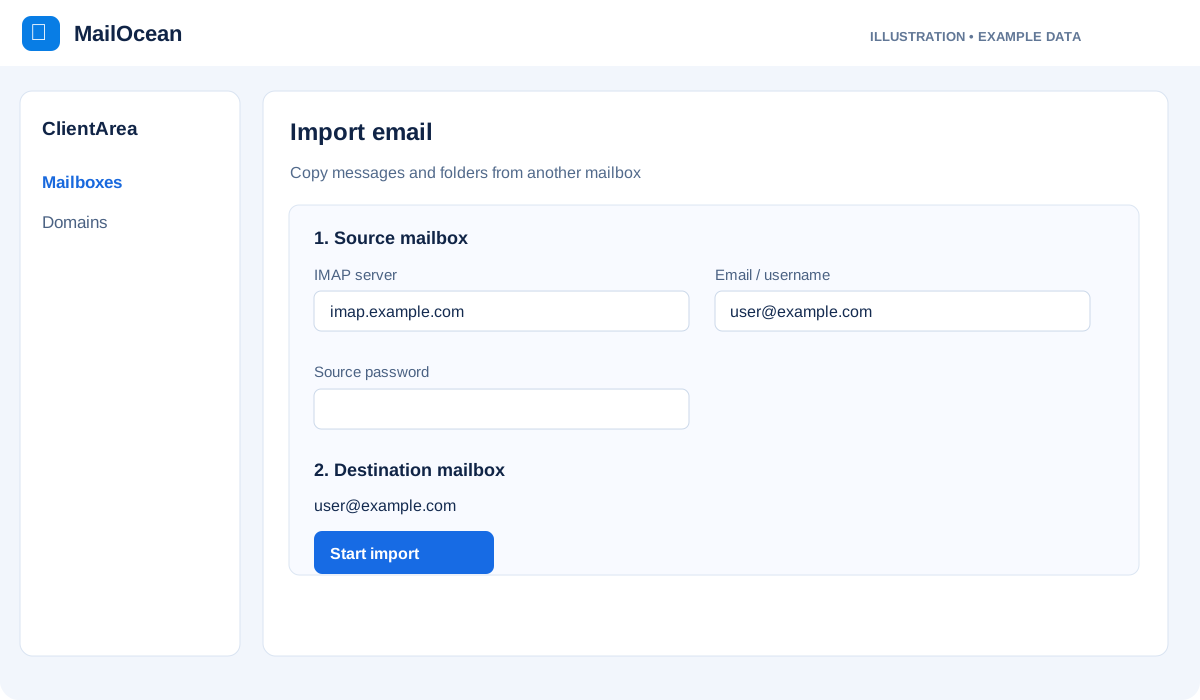
In the selected mailbox, open Import email, enter the IMAP source server and login plus the source and destination mailbox passwords, then start. Refresh status to follow progress and cancel if needed.
- In the selected mailbox’s Import email section, enter source host and login and both source and destination mailbox passwords.
- Start the import and refresh status to check progress and errors; cancel if needed.
- After completion, inspect the MailOcean Import folder and copied messages in webmail.
- After verifying the copied mail, change MX and other DNS settings as separate actions.
The worker can run in slices and resume automatically. An individual message larger than 64 MiB may be skipped with a partial result; the current folder limit is 250.
Troubleshooting and security
Check source TLS, port, login and destination quota. If the result is uncertain or requires support, contact MailOcean before starting again with a different source host or login.
- Check source hostname, TLS and credentials and the destination’s free space.
- If the result is unclear, contact support before restarting with a different source host or login.
- Do not include passwords, MFA codes or API tokens in tickets or screenshots.
Do not send passwords, MFA codes or API tokens in tickets, screenshots or messages. Enter migration credentials only in the verified MailOcean/WHMCS form.